

Microsoft Teams is the hub for teamwork in Microsoft 365 and a great way to keep your organization connected – especially when they need to be remote. Here are some basic tips for getting organized and making the most of Teams in your company.
1. Start simple
Chat functions can be an excellent way to get people communicating and active in Microsoft Teams. Show employees how to like comments, add emojis, gifs, and bookmark messages. It’s also a good time to teach the functionalities of calling, video, and screen sharing.
If you want your organization to get used to communicating within teams and channels, you may need to provide motivation. We found a creative way to do this by introducing “The Daily Thread” channel as a part of our company team. Each day we present a question and ask everyone to respond with their answer. Here’s one on “What’s your favorite sandwich?” that led to some interesting responses.
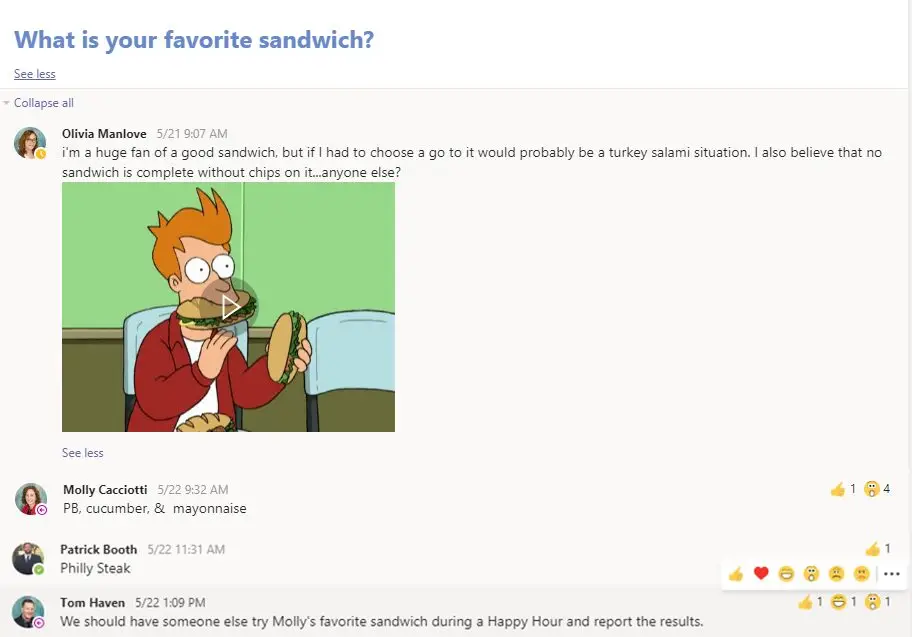
Be sure to add a subject title to your group post so it’s easy to keep track of. Using Teams in a fun way first can become a quick way for people to learn to respond to the appropriate threads and get used to chatting and posting in Teams.
2. Download the mobile app
Encourage the download of the Microsoft Teams mobile app to enable teamwork from anywhere on your phone while on the go. Don’t worry – the app allows you to set boundaries on your work time by setting quiet hours.
3. Think fewer teams and more channels
Be careful about starting too many small teams. Creating large teams with dedicated channels to collaborate on specific topics, projects, disciplines, or whatever you like, is the way to go. Don’t confuse teams with channels and the role they each play. It’s best to have a few large teams with several channels than many small teams with few channels.
4. Customize channels
Channels are where the real action happens – it’s the most efficient way to pull together all related content into one location. There is a learning curve here, but start by uploading files to a channel and pinning frequently used files to make it easy for everyone to find and start using for their resources.
5. Add apps to channels
You can integrate Word, PowerPoint, Excel, Power BI, Planner, SurveyMonkey, Hootsuite, and more with team chats and meetings. There are also fun ones, like Praise for recognizing accomplishments. It allows you to choose a badge and then add a personal note of thanks, congratulations, or whatever fits.

6. Manage ‘need to know’ content
Conversations can get messy and confusing quickly if users aren’t careful, so use OneNote or Wiki features to spotlight important content, meeting notes, best practices, and goals without cluttering conversations.
7. Highlight key resources
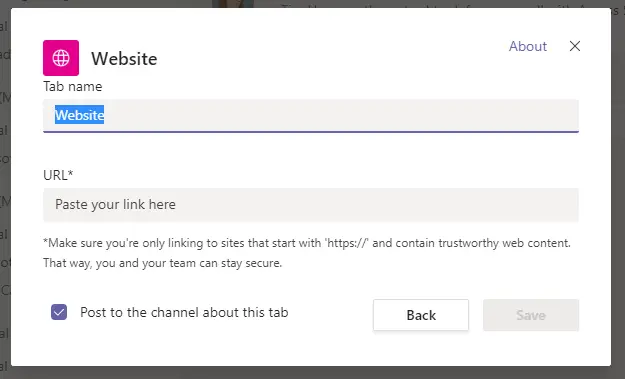
You can add essential websites used to track news, performance, live site monitoring or metric tracking. Simply add them as a tab at the top of a channel by highlighting the “+” and selecting “tab.” This keeps frequently used content easily accessible.
You can also pin your most frequently used channels or chats. To pin them, select the three dots next to the group, then select Pin. This keeps your most important chats and channels at the top for easy access.
8. Forward email conversations
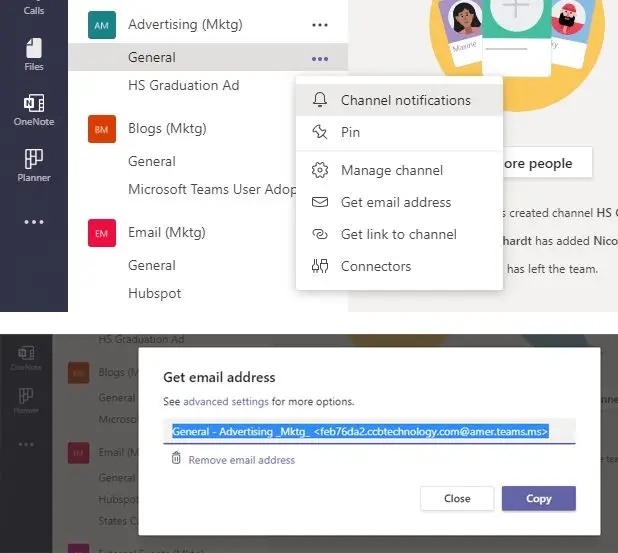
You can forward an email to a Teams channel for faster feedback within a threaded chat – attachments will upload automatically too. From Teams right-click on the ellipsis menu and select “Get Email Address.” Next, click “Copy” to add the email address to your clipboard. Open Outlook and paste the email address into the “To” field of any email you wish to forward to your Teams channel.
9. Keep channels active
It will take some discipline but be sure you are using the appropriate channel for the related content. Stay active in channels and use @team to highlight posts for the whole group to help others keep content and conversations where they belong.
10. Have fun!
Microsoft Teams provides everything you need to effectively collaborate with your co-workers and what we like best is the ability to also have some fun. We’ve done virtual happy hours, enjoy communicating through emojis, YouTube and gifs, and add background images during calls – just to name a few.
Here’s an occasion where we congratulated our department employee of the month:
The possibilities are endless – both for getting work done and connecting in general. Onboarding Microsoft Teams throughout your organization doesn’t have to be a challenge and CCB is here to help support you. Let us know how we can make Teams happen for you.