

First, take a deep breath. Yes, you’ve clicked on a suspicious link, and yes, time is of the essence – but it’s okay. Clicking a phishing link happens more often than you’d think, and this guide is here to help. We’ll provide more information on Phishing and how to avoid needing this guide again in the future, but for now – let’s address the issue.
1. Go Offline
Our first action is to cut off any communication between potential viruses and the attackers that sent them.
BEFORE YOU DISCONNECT:
If you haven’t already, open this blog on your mobile device so you can continue to follow along and disconnect your compromised device.

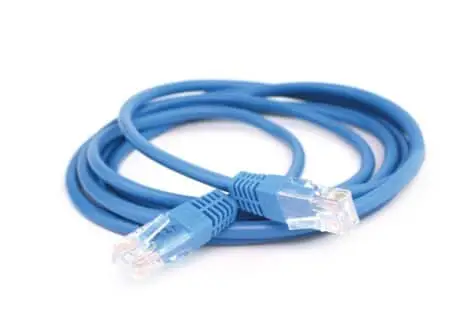
To go offline, you’ll need to unplug your ethernet cable or turn off Wi-Fi on your device.
How to unplug your ethernet cable:
Press down on the plastic clip at the top or bottom of the plug. Pressing down on the clip will release the anchor, allowing you to pull it from the device.
How to turn off Wi-Fi (wireless internet):
- From the Windows desktop, click the Wi-Fi icon at the bottom right-hand of your screen. Utilize the touchscreen (if available) or mouse to select the on-screen options.
- From the Wi-Fi section (on the right, above the taskbar), click the connected Wi-Fi network address.
- Click Disconnect.
2. Start Your Antivirus Software
Next, open your trusted antivirus software. Select the option for a full or comprehensive system scan and start it. This is your digital defense force; let it find and neutralize any threats. If you don’t have antivirus software, now is the best time to pick one up. If you’re on a work computer, talk to your IT department to get their preferred software installed as soon as possible.
Kaspersky Free, Bitdefender Free or Avast One are great free options if you can’t afford to sign up for a paid version!
Note: If you have disconnected from the internet and have not previously installed antivirus software, you can download the installer on a different device and transfer it over with a USB drive. Copy the installer to the computer that needs to be scanned, install the software, and use it to clean the PC. Once you are done cleaning the PC, scan the USB drive (if possible) before removing it to use somewhere else!
3. Change Your Passwords
If there is a chance you’ve been compromised, it means those attackers could have also gained access to your personal accounts! Let’s make sure to lock any potential invaders out. Start with your most sensitive accounts – email, online banking, social media, or anything that holds valuable personal or financial information. Remember, each account needs a strong, unique password!
If you struggle to keep track of all your passwords, now is probably a good time to consider installing or enabling a password manager like 1Password or Bitwarden. Both options are considered leaders in the password manager category. Password Managers help by storing your login information for all your websites, suggesting long, unique passwords, and then auto-filling the password area when you return to the website to help you log in with complex credentials you might not otherwise be able to remember. This ensures that no two accounts utilize the same credentials, so if one account is compromised, the others are likely safe!
4. Monitor Your Accounts
Despite having updated your passwords, it is important to remain vigilant and closely monitor your accounts for any suspicious or abnormal activities in the coming days. If something looks odd, get in touch with the support of the webpage, or in the case of a bank, call their fraud line immediately.
Some examples of suspicious activity include replies from people you haven’t contacted, emails to reset passwords or two-factor authentication codes appearing when you haven’t requested them!
5. Report the Phishing Attempt
Reporting the incident helps protect others, too. Inform your workplace’s IT department if it’s a work device or your email provider if it came via email. You can also report phishing attempts to your local law enforcement cybercrime unit or your country’s equivalent of the Federal Trade Commission (FTC) in the U.S. Learn more about reporting or report an event directly to the FBI here!
6. Learn and Adapt
You’re now part of the informed internet users’ club, more prepared to spot and avoid phishing attempts in the future. Stay vigilant! Always scrutinize the sender’s address and think twice before responding to unsolicited messages asking for personal information.
And… you’re done! A big sigh of relief is in order. You’ve acted promptly and wisely to protect your digital self. Remember, this guide is here for you anytime you need it. Stay safe, friend!
Additional resources:
8 User Tips for Identifying Phishing Emails
Microsoft 365 Information on Phishing Emails